
Download DiskInternals NTFS Reader – Free NTFS Recovery & Unformat Tool for Windows
Overview
DiskInternals NTFS Reader is a lightweight, free Windows utility designed to give users access to data stored on NTFS partitions that are otherwise invisible to the operating system. Whether you are dealing with a corrupted volume, an accidental format, or a broken boot sector, this tool lets you explore the raw file system and copy files out without having to reinstall Windows or rely on expensive commercial solutions. First released in 2006, the application has attracted thousands of downloads worldwide, especially in Brazil, thanks to its straightforward interface, minimal system footprint, and focus on security‑backups.
The current version (2.0) remains compatible with legacy Windows environments such as Windows 95 and later, making it a handy companion for technicians who still support older machines. Because the program runs entirely in user mode, there is no need for kernel‑level drivers, which reduces the risk of system instability. DiskInternals NTFS Reader is distributed in English only, but its icon‑driven UI makes it accessible even for users with limited English proficiency.
Key Features
- Read‑only access to NTFS partitions – no risk of overwriting original data.
- Supports recovery from formatted, unallocated, or corrupted NTFS volumes.
- Ability to copy files and folders to any writable drive, including FAT32 and exFAT.
- Small installation footprint – consumes less disk space than typical security backup tools.
- Fully compatible with Windows 95 up to Windows 10 (32‑bit and 64‑bit editions).
- Native English UI with clear icons and tooltips for ease of use.
- No additional drivers required – runs entirely in user space.
- Free for personal and commercial use, with no hidden fees or trial limitations.
Installation & Usage Instructions
Getting DiskInternals NTFS Reader up and running is a breeze, even for users who are not comfortable with command‑line tools. Follow these steps for a smooth setup:
- Download the installer. Visit the official DiskInternals website or a trusted software catalog and click the “Download” button. The file is a small
.exepackage (under 5 MB). - Run the installer. Double‑click the downloaded file. Because the program is signed, Windows will prompt you to confirm that you want to allow the application to make changes to your device. Click “Yes”.
- Choose installation options. The wizard asks for a destination folder; the default path (C:\Program Files\DiskInternals\NTFSReader) works well for most users. You can also create a desktop shortcut during this step.
- Complete the installation. Click “Install” and wait a few seconds while the files are copied. Once finished, click “Finish” to launch the application automatically.
- Select the target volume. In the main window, you will see a drop‑down list of all detected NTFS partitions, including those that are hidden or unmounted. Choose the volume you need to recover from.
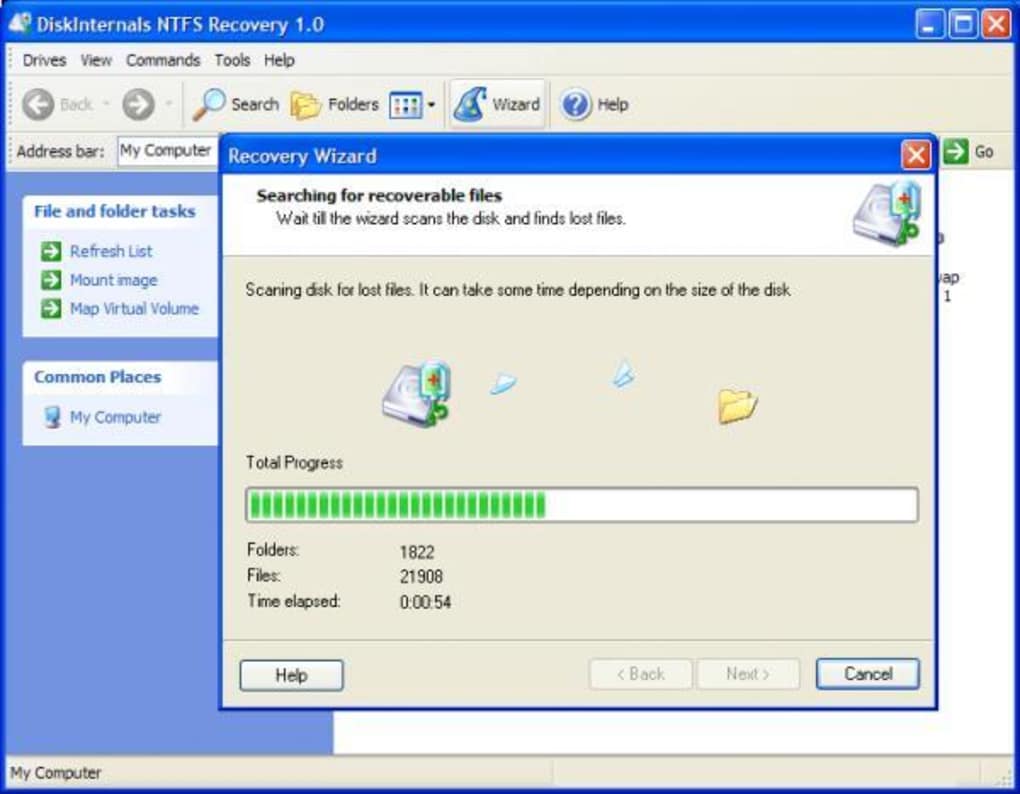
- Browse the file system. The tool presents a familiar explorer‑like view, allowing you to navigate folders, preview file names, and inspect timestamps. Because the access is read‑only, the original NTFS structures remain untouched.
- Copy files out. Highlight the files or folders you wish to recover, right‑click, and select “Export”. Choose a destination on a healthy drive (e.g., your desktop or an external USB stick). The copying process preserves original file names and timestamps whenever possible.
- Verify recovered data. After the export completes, open the destination folder and confirm that the files are intact. If you encounter any permission issues, run DiskInternals NTFS Reader as an administrator by right‑clicking its shortcut and selecting “Run as administrator”.
Because the application does not write to the source volume, you can safely repeat the recovery process or try alternative recovery strategies without fearing further data loss. For power users, the program also offers a command‑line switch (/export) that can be scripted for batch operations.
Compatibility, Pros & Cons, FAQ & Conclusion
DiskInternals NTFS Reader runs on all Windows versions from Windows 95 through Windows 10, supporting both 32‑bit and 64‑bit architectures. It requires no additional runtime libraries beyond the standard Windows components, making it an ideal choice for legacy PCs and modern workstations alike.
Pros
- Completely free with no hidden trial period.
- Read‑only mode guarantees that original data remains untouched.
- Works on very old Windows systems (Windows 95 and later).
- Small footprint – consumes minimal disk space and memory.
- No driver installation; runs safely in user space.
Cons
- Lacks advanced forensic features found in premium tools.
- Interface is functional but not as polished as modern apps.
- Only available in English, which may limit non‑English speakers.
- No built‑in support for non‑NTFS file systems (e.g., ext4, HFS+).
Frequently Asked Questions
Can DiskInternals NTFS Reader recover files from a completely formatted drive?
Yes. The tool scans the raw NTFS structures on the formatted volume and can list files that have not yet been overwritten. It then allows you to export those files to a safe location.
Is the software safe to run on a virus‑infected computer?
Because DiskInternals NTFS Reader operates in read‑only mode and does not install drivers, it does not introduce additional risk. However, always ensure your anti‑malware solution is up to date before handling potentially compromised drives.
Do I need an internet connection to use the program after installation?
No. All functionality is local. An internet connection is only required to download updates or the installer itself.
Can I run DiskInternals NTFS Reader on Windows 11?
While the official documentation lists support up to Windows 10, the application has been reported to work on Windows 11 without issues because it relies on core NTFS APIs that remain unchanged.
Is there any limit to the size of files I can recover?
No artificial limits are imposed by the software. Recovery is constrained only by the available space on the destination drive and the underlying file system’s maximum file size.
Conclusion & Call to Action
DiskInternals NTFS Reader remains a solid, free option for anyone who needs to retrieve data from damaged or formatted NTFS partitions without paying for heavyweight forensic suites. Its compatibility with legacy Windows versions, tiny installation size, and read‑only safety model make it especially attractive for IT support teams that still manage older hardware. While it lacks some of the bells and whistles of premium alternatives, its core mission—to provide secure, straightforward NTFS access—gets the job done reliably.
If you are looking for a trustworthy, no‑cost solution to recover lost files or simply explore an inaccessible NTFS volume, download DiskInternals NTFS Reader today and start salvaging your data in minutes.







